
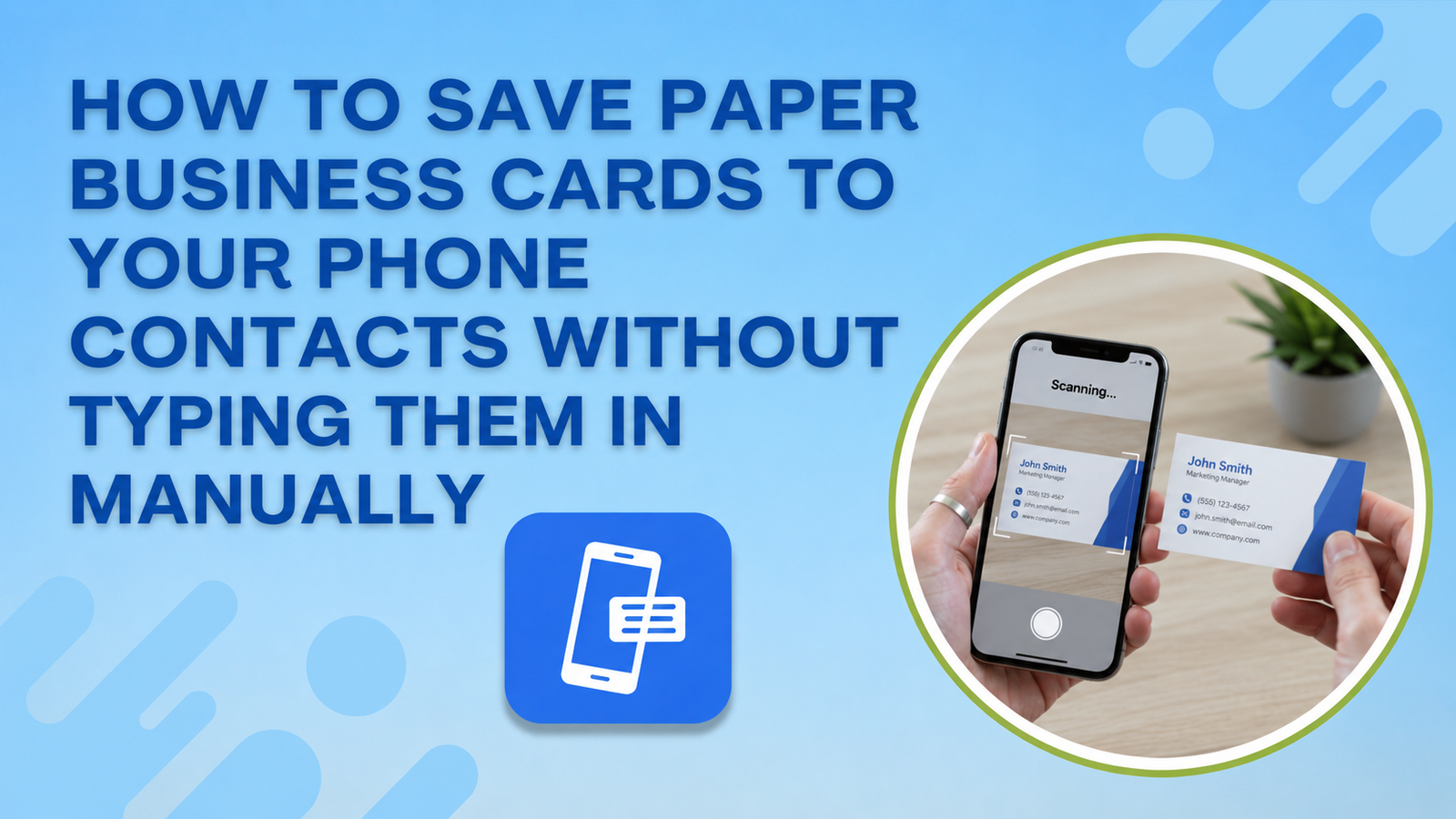
You walk out of a conference with a fistful of paper cards and the best of intentions. You tell yourself you will enter them into your phone contacts later. Three weeks pass. The cards sit in a drawer or the bottom of your bag, and most of those contacts are effectively lost even though the information was right there in your hand the whole time.
This is one of the most common and most quietly expensive networking problems professionals face. Research shows that manually entering contact information is one of the biggest time drains in professional life and that every mistyped email or transposed phone digit costs you a relationship before it even starts. How to save paper business cards to phone contacts in 2026 there are faster and more accurate ways. And this guide covers every method that actually works so you never have to type someone’s details in manually again.
Why Manual Entry Is the Wrong Approach
Most people photograph a card and plan to type it up later. “Later” never comes, or it comes three weeks after the conversation when the context has completely faded. Even when it does happen, the accuracy problem remains. A misread digit on a mobile number means your follow-up call goes nowhere. A misspelled email address means your message bounces and the connection you worked to make simply disappears.
For sales professionals and small business owners the stakes are higher still. Every conference or networking event produces a stack of cards that represent potential clients, referral sources, and partnerships. Losing those contacts to a pile on your desk is not a minor inconvenience. It is measurable lost revenue, and the manual entry bottleneck is the reason it keeps happening.
Method 1: Use Google Lens on Android
Every modern Android phone already has Google Lens built into the camera app and most Android users never realize it can scan business cards directly into Google Contacts without any additional download.
Open your Android camera app and look for the Google Lens icon at the bottom of the frame. Hold the paper business card steady in front of the camera on a flat surface in good lighting. Google Lens reads the card and recognizes the contact information automatically. A small contact chip appears on your screen. Tap it and the details populate directly into a new Google Contacts entry with the name, phone number, email, and job title already filled in. Review the fields for accuracy and tap save.
The whole process takes under ten seconds per card. You need no extra app and pay nothing. The only step that requires human attention is reviewing the prefilled fields because OCR technology occasionally misreads a character, especially in stylized fonts or small print sizes.
Method 2: Use the iPhone Camera With Live Text
iPhone users running iOS 15 or later have a feature called Live Text built directly into the native camera app. Point your camera at a paper business card, and your phone automatically highlights text it recognizes as a phone number or email address.
Tap the highlighted phone number, and your iPhone offers to save it as a new contact. Tap the email address, and it offers the same. You build the contact entry field by field this way without typing a single character. For cards with clean, simple layouts and standard fonts, the accuracy rate is very high. For cards with decorative fonts or unusual layouts, you may need to correct one or two fields before saving.
Method 3: Scan With Google Contacts Directly
The Google Contacts app on both Android and iPhone includes a built-in scan feature that handles business card digitization in one step. Open the app, tap the add contact icon, and select scan. Hold the card steady within the frame and wait for the app to recognize the information. The contact fields populate automatically, and you tap save.
This method works well for professionals who collect large volumes of cards at events because the dedicated scanning mode within the app is optimized specifically for business card layouts. It also stores everything directly in your Google account, which syncs across your devices automatically.
Method 4: Send the Card Image to Yourself and Use AI Extraction
If you photograph cards during an event and deal with them later the smartest workflow in 2026 uses AI to extract the details rather than your eyes and fingers. Several WhatsApp-based tools let you send a card photo and receive back a structured contact record within seconds that you can save directly to your phone.
The advantage here is speed at volume. After a full day at a conference you might photograph fifteen cards. Sending them all at once and receiving fifteen structured contact records takes minutes rather than the hour of manual entry that fifteen cards would otherwise demand.
The Fundamental Problem That Scanning Solves Only Halfway
Every scanning method above works significantly better than manual typing, and you should absolutely use them. But they all still start from the same place, which is a paper card with static frozen information. The phone number was correct when the card was printed. It may not be correct now. The email domain may have changed. The job title may be three roles out of date. You save the contact accurately, but the information itself may already be wrong.
This is the deeper problem with paper cards that no scanning app can fix. Scanning improves the entry process, but it cannot update information that changed after the card was printed. A digital card solves this at the source because the person who gave it to you controls the information and keeps it current. When they change their number, they update their digital card once, and everyone who has their link or QR code sees the new number automatically. There is no stale contact to scan and no wrong number to discover later.
The Long-Term Fix: Stop Collecting Paper Cards
The most effective approach to saving paper business cards to phone contacts is to replace the paper card exchange with a digital one wherever possible. When you share your contact information via a digital card link or QR code, the person receiving it saves your current details in one tap directly from their browser. When they send you their digital card link, you do the same. No scanning, no OCR, no manual entry, no stale data.
ShareEcard offers a free digital business card for small business owners and professionals across every industry. You set up your card once using a free industry-specific template and share it via QR code or a direct link. The person receiving it needs no app to view or save your details. They scan your QR code with their standard phone camera, and your information lands in their contacts with one tap.
This is how to share contact information without a business card in a way that makes manual entry and scanning completely unnecessary for both sides. Your contact gets accurate information instantly, and you get theirs the same way.
For professionals who still receive paper cards regularly from contacts who have not yet made the switch, the scanning methods in this article handle that workflow efficiently. Use Google Lens or the Google Contacts scan feature to digitize incoming paper cards on the spot while the conversation is still fresh. Add a brief note in the contact record about where you met and what you discussed before you put the card away. That context disappears faster than you expect, and having it in the contact record turns a saved contact into an actual relationship.
To see free print-ready card templates matched to your industry, visit ShareEcard’s design library and find a design built specifically for your profession. You can add your digital card link or QR code to any printed card you still use so that anyone who receives it can save your current details digitally rather than typing your information manually from the front of the card.
FAQs
How do I save paper business cards to my phone contacts without typing?
Use Google Lens on Android or the Live Text feature on iPhone to scan cards directly into your contacts app. Both work through your existing camera app with no additional download. For higher volumes use the scan feature built into the Google Contacts app directly.
Does Google Lens accurately read all business cards?
Google Lens reads most standard business cards accurately but occasionally misreads stylised fonts or very small text. Always review the prefilled fields before saving to catch any errors in phone numbers or email addresses before they become a problem.
What is the fastest way to digitize a large stack of business cards after an event?
Photograph each card during or immediately after the event and use an AI extraction tool via WhatsApp to receive structured contact records in bulk. This turns a one-hour manual entry session into a few minutes of reviewing and saving prefilled records.
How do I stop having to scan cards at all?
Switch to a digital business card for your own contact sharing and ask contacts to do the same. When both parties share via a digital link or QR code, no scanning or entry is needed on either side. The contact saves directly from a browser tap with zero manual input.
Is a free digital business card with no app required actually possible?
Yes. ShareEcard offers a genuinely free digital business card that the recipient views and saves through their standard phone browser. No app download appears on their end. They scan your QR code and your details save to their contacts in one tap.
